Orders and Sections
The Order & Sections option allows users to group rooms into sections to make the housekeeping assignments more streamlined and efficient. Sections help users to divide the property into areas that can be assigned to housekeeping staff. For example, users can divide the property into floors (Floor 1, Floor 2, Floor 3, and so on), or wings (Left Wing, Center Wing, Right Wing), or any other way that breaks an area down into a reasonable size for housekeeping.
After creating sections, user needs to move the rooms into each section. When the user is adding rooms, they appear in the Unsectioned area of the Room Order & Sections page.
The final step is to organize the rooms in each section into an efficient order. For example, user could organize in a way that housekeeping is moving down the hall room-by-room, or across the hall and back, rather than moving back and forth between hallways. This will help decrease time spent moving between rooms.
Perform the following steps to create a new section:
Navigate to Settings ➜ All Settings ➜ Housekeeping (under Back of House).
Click Order & Sections tab or scroll down the page.
Click Add New. The New Section dialog box appears.
Enter the name for the new section in the Name field.
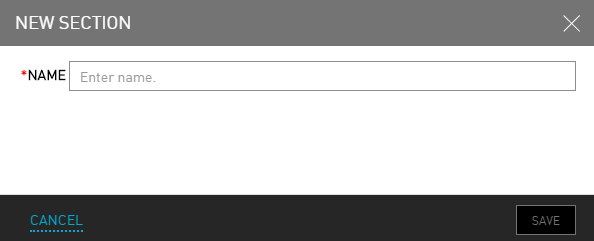
Click Save.
The user can create many sections. For example, organizing by floors is a common approach. Create a section for each floor.
Select the checkbox next to any room in the Unsectioned area.
Click Move to Section. The Move To Section dialog box appears.
Choose which section the room is located from the Move To list.
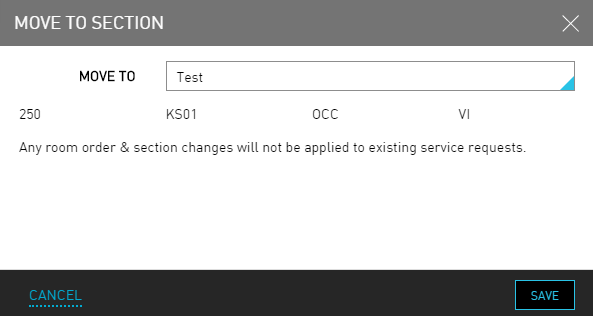
Click Save.
All room order and section changes are effective going forward and do not apply to existing service requests.
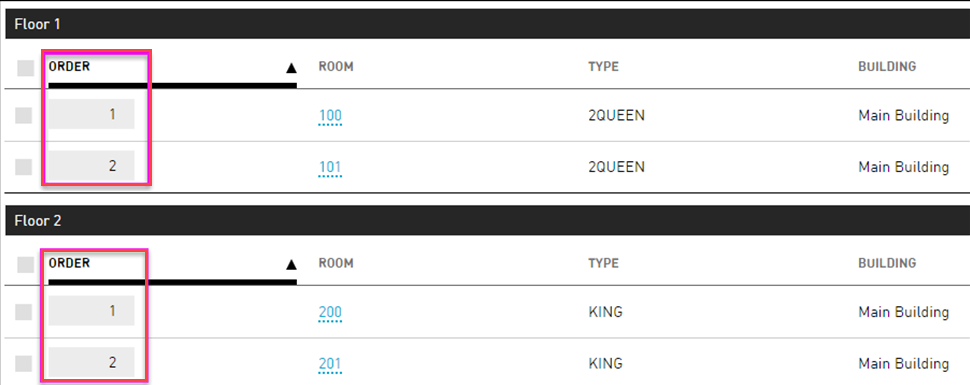
Within the sections listed on the Room Order & Section page, enter the order in which the rooms must be cleaned. For example, 1, 2, and so on.